
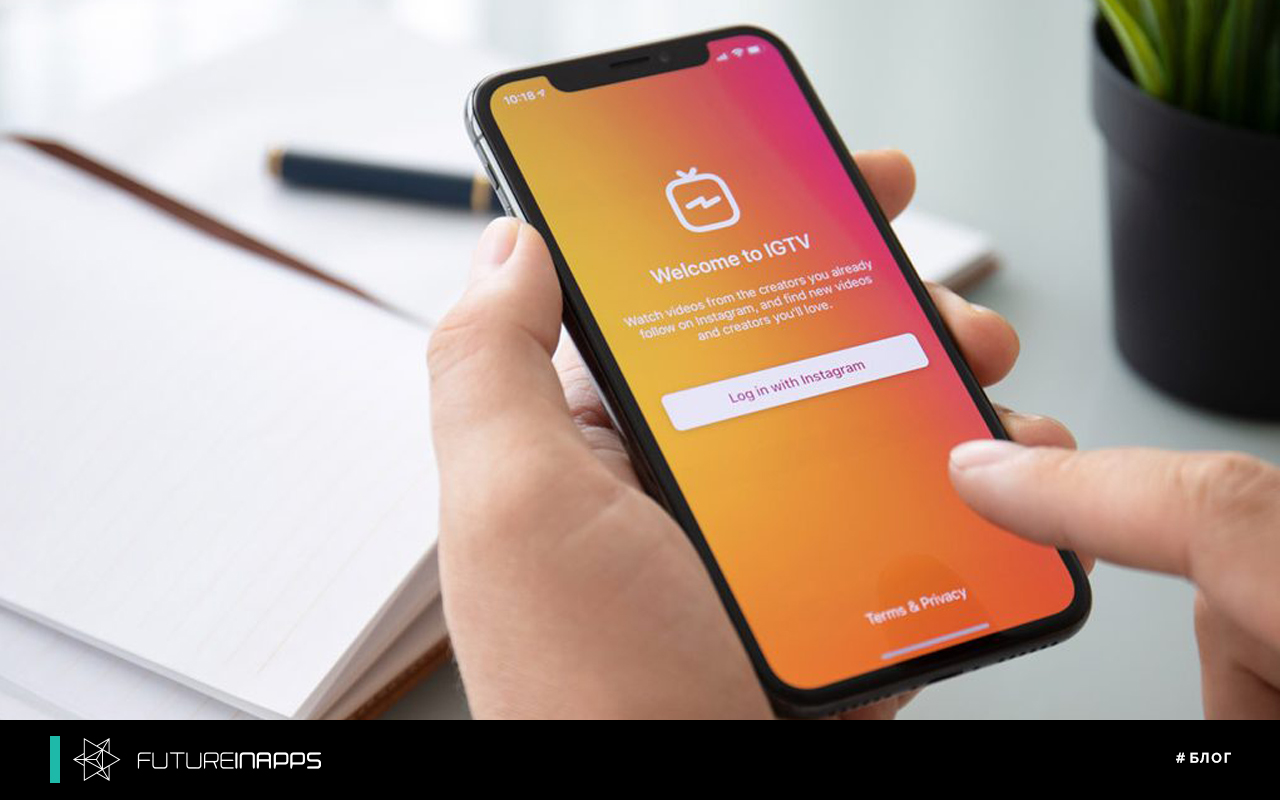
So, you have probably heard (or seen) what IGTV is.
IGTV is an Instagram for long video content, allowing users to download content of up to ten minutes. The uniqueness of the platform lies in the fact that it is intended mainly for vertical content (even if horizontal video is now supported).
These videos can be accessed from the standard Instagram app, and users are allowed to post 60-second previews of the clip in their feed. Then their subscribers can view the full video on Instagram by clicking on the video or inquiry after previewing the clip. In essence, this is an Instagram way to keep users in the app, instead of switching to YouTube.
So now that you know what IGTV is, you may wonder how to use it. Here's a life hack!
Create a video for IGTV! Facebook likes to prioritize the news feed of an application to encourage engagement. As a result, preview posts have priority in the feed of your subscribers, and also appear on the “Detection” screen more often. In other words, your content is promoted by Instagram for free.
Many brands are in no hurry to make the leap in the newest feature of Instagram. While the increase in free content is nice, for some it’s hard to justify creating vertical video content for one platform. Time and resources cost money, and the larger the company, the stricter their content. This can give small and medium-sized companies an advantage by giving them the freedom to move forward and create content without restriction.
This does not mean that all companies should do this on their phone. IGTV is a great new tool, but there are some noticeable differences between what you can and cannot do. Let's take a look at this.
You can: publish videos for submission
As we mentioned earlier, you can post a 60-second clip to your news feed. When you first publish your video, you can share a preview of the entire video. If you prefer, you can also share an IGTV video with an associated Facebook page. Important note: you can only share a video preview in your news feed or share IGTV when posting - you can’t do it later.